
At-Home Testing.
Same SSAT.
The SSAT at Home provides families in the United States, U.S. territories, and Canada with the convenience of taking the SSAT online in the comfort of their homes.

%201.webp)
What is the SSAT at Home?
The SSAT at Home is a computer-based version of the SSAT taken on select testing dates at pre-scheduled times.
Review the requirements below to ensure it’s the best test mode for your child. You can also help them do their best with the Official SSAT Practice Materials.
Yes

- Middle and Upper Level SSAT
- United States, U.S. territories, and Canada
- Device, internet, and room availability
- Accommodations
- Fee Waivers
- Comfortable taking a computer-based test while monitored by a proctor via webcam
- Typed writing sample
No

- Elementary Level SSAT
- Physically located outside of the United States or Canada on test day*
- Preference for a traditional paper test, including a handwritten writing sample
*Paper and Prometric SSAT testing is available in many locations worldwide; search our paper test centers, look for a Prometric test center, and email info@ssat.org if you don’t find a convenient location.
SSAT at Home Test Schedule
Availability is Tuesday through Saturday of select weeks throughout the year. The deadline to schedule is 72 hours before each test start time. Learn about the score release schedule here.
**Additional test dates coming soon for December 2026 through June 2027.


Testing times are generally from 10 a.m. – 5 p.m. ET (7 – 2 p.m. PT).
October

November
SSAT at Home Test Information
Check out the sections below to Understand the requirements, Prepare for test day, and complete the Test.
Understand Requirements
When selecting the SSAT at Home, parents and guardians assume the responsibility for meeting all tech, room, and other requirements. Please review the following information carefully as it is critical to ensuring a successful test day experience.
- You must be physically located in the US, Canada, or a US territory on test day.
- You may test at your home or other location that meets all other requirements.
- The room must be quiet and free from distractions.
- Except during check-in where a parent/guardian is recommended to assist, only the test taker is allowed in the room.
- All Prohibited Items must be removed from the testing room. Additional monitors, screens, or objects that the proctor deems may provide an advantage or impact testing will need to be removed or covered. Proctors have the sole discretion to determine if other items not listed must be covered or removed.
- You must be seated at a desk, table or similar work surface. You may not be seated on a floor, bed, or have your computer in your lap.
- Except for scrap paper, a pencil, water (details below), and any applicable and approved accommodations items, you should have a ‘clean desk’ with no additional items on, under, or immediately next to your computer area.
- While there is no specific dress code, students must wear clothing appropriate for an academic setting. Swimsuits, overly revealing clothing, or clothing with offensive or explicit content is prohibited. Proctors have final discreton about what is appropriate.
- Parents/guardians must remain available in a nearby room throughout testing.
- While not required, it is recommended that a parent/guardian be in the room during the check-in process to assist.
- The parent/guardian can complete the check-in, including the room scan, but just remember to take a selfie of the student and not the parent when prompted.
- Run the Basic System Check
- The basic system check verifies system capabilities and allows you to practice connecting a Second Camera Device.
- Follow the instructions on screen.
- This version is best for those that have not yet registered.
- This basic version runs in your web browser and does not download the full system application.
- If you have registered, it is recommended you instead use the Run the Testing App, for the Full Practice Check-in.
- Internet - Your network speed should be at least:
- 15+Mbps download
- 3+Mbps upload
- Consider using a free tool such as speedtest.net to check your internet.
- Primary Testing Device
- Your device should be plugged into power throughout testing.
- We recommend you do NOT use a work or company device as you may not have the access needed to install necessary software, security or firewalls may block testing, and/or integrated VPNs or networks may prevent your location from being determined.
- The following devices are supported. Pay attention to the specific system requirements:
- Second Camera Device
- You must have a second camera device. The following devices are supported:
- iPhone or iPad running iOS 16.
- Android Phone or tablet running Android 9+ (Pie)
- You will need a way to prop up your phone and point it at your hands, keyboard, and monitor during testing (a stand, mount, case or object other than a prohibited item is fine).
- Your device should be plugged into power throughout testing.
- The second camera device should not be the phone listed as the parent/guardian contact phone number--as the app will prevent any phone calls with support.
Prepare
Be sure to follow these steps to prepare as soon as possible so you can be assured of a stress free test experience. It's best to perform this preparation at least a week ahead of testing in case you have issues or require support.
- DOWNLOAD and RUN the Testing App on the Primary Testing Device your student will use on test day.
- Note: this will require you to close most other programs, so its best to do this when you have a few minutes to dedicate to the process. This will:
- Check your system
- Have you to practice connecting your Second Camera Device
- Have you complete a room scan
- Have you practice placing your Second Camera Device an arms length away (propped up as necessary) to show your desk, all screens, keyboard, hands, and face.
- Note: this will require you to close most other programs, so its best to do this when you have a few minutes to dedicate to the process. This will:
The following steps are provided to know what to expect, but know that the process walks you through it step-by-step.
- If prompted, close any necessary programs or click Continue.
- Click Start a Practice Session.
- Enter your registration ID and last name.
- These are listed on your test under "My Tests" in your account.
- Read the directions and Select the checkbox that you have read the rules and requirements and click Next.
- Follow the steps to check your speakers, microphone, and camera.
- Scan the QR code with your Second Camera Device to install the Second Camera Device App on the device your student will use.
- You can also download the Remote Proctor Connect app from the Apple App Store or Google Play Store. (It is the Remote Proctor Connect app from (ITS) Internet Testing.
- Enter the mobile code from your Primary Testing Device on your Second camera Device.
- Be sure to type the dash.
- Confirm your identity and confirm you understand your device should be plugged into power.
- Select which camera to use.
- On your Primary Testing device click Next, center yourself in the frame, and click Take Picture.
- The system will verify the setup.
- The final steps let you practice the Room Scan and Second Camera Device placement.
- Click Start Room Scan and Continue.
- Scan the QR code with your Second Camera Device and slowly turn to the left 360 degrees scanning the entire room until you have scanned the QR code again.
- Click Next and place your Second Camera Device on the desk propped up against something an arms length away so that your desk, all screens, keyboard, hands, and face are visible.
- Click Validate Setup and you will receive a confirmation if all items are complete.
- Internet ok
- Equipment setup
- Primary Testing Device setup with app
- Secondary Camera Device setup with app
- Room prepared
- Parent/guardian available
- Other Items:
- 3-4 blank pieces of paper (lined or unlined)
- Up to 2 plain pencils (no mechanical pencils or pens)
- Optional: water in a clear plastic water bottle or clear glass (labels and opaque containters are not acceptable)
- Approved testing accommodations (if applicable)
Test
Learn what to expect on test day, what you'll see, and how to hanldle any unexpected issues.
- Plan to launch your test 30 minutes ahead of your scheduled time.
- Your test session is guaranteed until 15 minutes after your scheduled time.
- After this period, testing may or may not be possible based upon availability at the sole discretion of E3n staff.
- To launch the test, DOWNLOAD and RUN the Testing App on the Primary Testing Device and click Start Test.
- Follow the prompts on both of your devices to complete checkin and start testing.
- Enter your session number, registration ID, and last name.
- These are listed on your test under "My Tests" in your account.
The following steps are provided to know what to expect, but know that the process walks you through it step-by-step. Depending upon your device, you may need to hold your Second Camera Device vertically or horizontally during some steps.
- Follow the steps to check your speakers, microphone, and camera just like you did in practice checkin.
- Take a picture of the QR code to download and install the Second Camera Device App
- You can also download the Remote Proctor Connect app from the Apple App Store or Google Play Store. (It is the Remote Proctor Connect app from (ITS) Internet Testing.
- If you completed practice check-in previously with this device, it will simply open the App.
- Enter the mobile code from your Primary Testing Device on your Second Camera Device. Be sure to type the dash.
- Once connected, confirm your identity.
- Confirm your devices are both plugged in and charging.
- On your Second Camera Device, select which camera will be used and click next.
- Use your Second Camera Device to scan the QR code on the screen.
- Click next on your Primary Testing Device.
- Use the Primary Testing Device to take a selfie (of the student).
- Click Start Room Scan on your Primary Testing Device.
- Point your Secondary Camera Device at the QR code on the screen and then rotate to the left in a complete circle until you are pointed back and the QR code again.
- Wait patienty as you are then transferred to a checkin specialist who will chat with you and help with any issues and start the test when everything is ready. A checkin specialist may:
- Ask you to remove or cover items in the room.
- Check that you have no electronics, watches, or earbuds or ask to check your glasses for recording devices.
One of the best ways to prevent to decrease stress on test day is to become familiar with the test interface. Check out this FAQ that details the SSAT at Home interface.
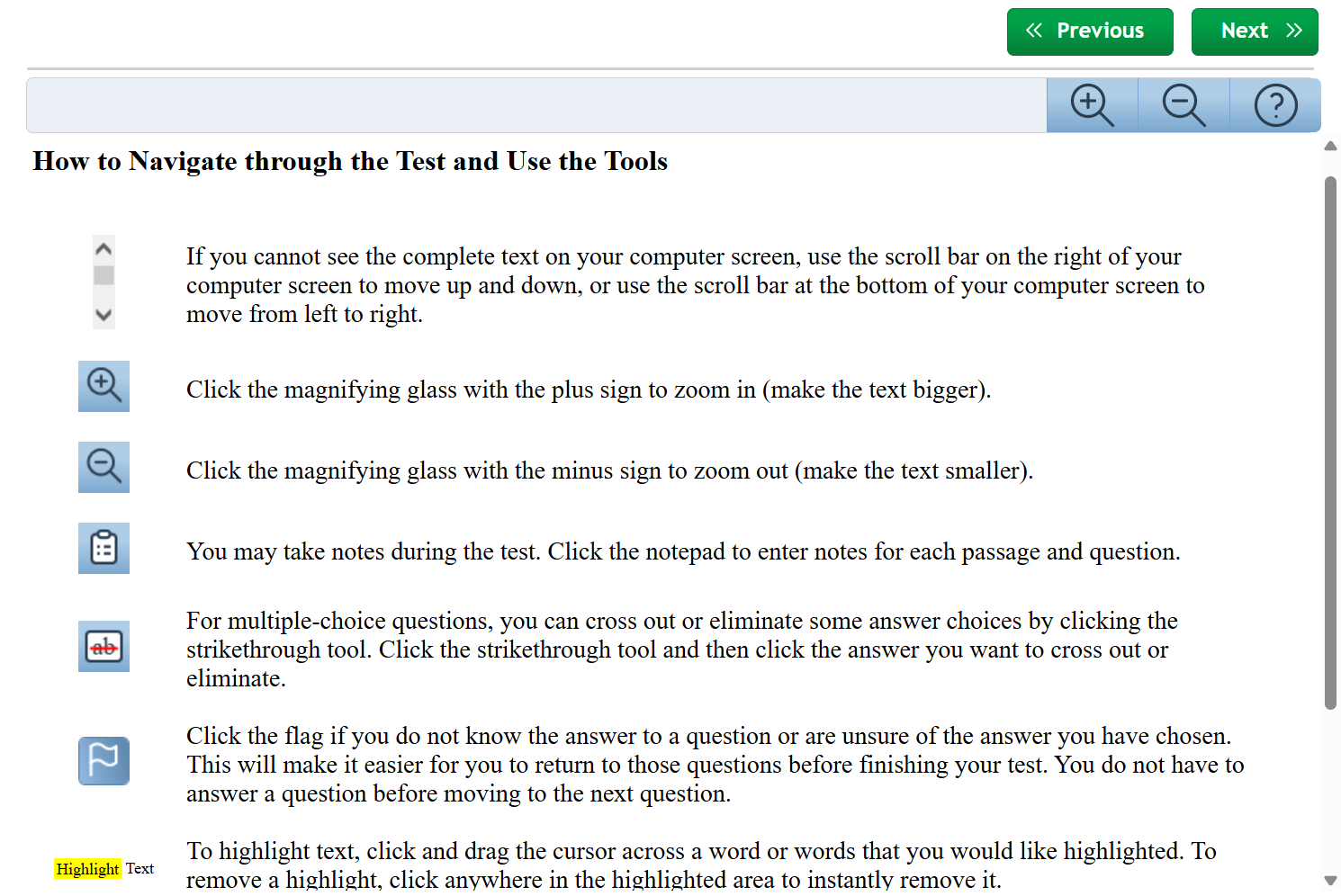
- Consider having the parent/guardian complete check-in to decrease stress for the student.
- Do not schedule multiple students at the same time. This can impact internet bandwidth and be stressful if each student requires the parent/guardian at the same time.
- Limit internet usage for others on your network during testing. It is especially important to ensure others are not streaming video or gaming during testing as that can cause impacts.
- Remember that students can end each section early, however, once a section is ended, students can't return to it.
- For SSAT at Home Test Day Support:
- Tuesday through Friday: 1-609-683-4440
- Saturday: 1-646-503-2685
- Problems? Questions?
- If you are connected, simpy raise your hand or chat your proctor with any questions or concerns.
- Parents/guardians should be available on the phone they indicated during registration in case proctoring staff need to contact them.
- Connection issues
- If your Wifi or local internet slows, a proctor may pause your test. If so, know that the timer has stopped and you are NOT losing time.
- If very brief, testing will restart without any additional steps.
- For full disconnections, you will have to go through a check-in process again. If so, know that the timer has stopped and you are NOT losing time.
- If your Wifi or local internet slows, a proctor may pause your test. If so, know that the timer has stopped and you are NOT losing time.
- Common Fixes
- Clear cache, cookies, and history on Primary Testing Device.
- Close all background programs including firewalls, antivirus software, and parental controls.
- Incomplete Tests
- We understand that on occasion, something may happen with Wifi or you may encounter technical issues that prevent testing from being completed. For that reason, if you launch the SSAT at Home on time (no later than 15 after your scheduled test time) and you do not have a scorable test, you will be provided a free retest. Contact info@ssat.org to request validation and a free retest.
- This retest opportunity is valid only for the current testing year (August through July).
- If we have no record that you initiated the test within 15-minutes of your scheduled test time, you will not be provided a free retest opportunity.
- No refunds will be made available.

What is the best way to prepare for the SSAT at Home?
The Official SSAT Online Practice from the creator of the SSAT at Home provides the best simulation for taking a computer-based SSAT. Complete with four full-length practice tests, 15 practice section tests, and over 50 quiz subjects.
%204.webp)

Need help?

Contact SSAT Support
For general SSAT questions, changing a paper SSAT registration to Prometric, and any other inquiries.
1-609-683-4440
info@ssat.org
Monday – Friday, 9 a.m. – 5 p.m. ET
Helpful Links:

